

Record your dashboard, camera bubble and all
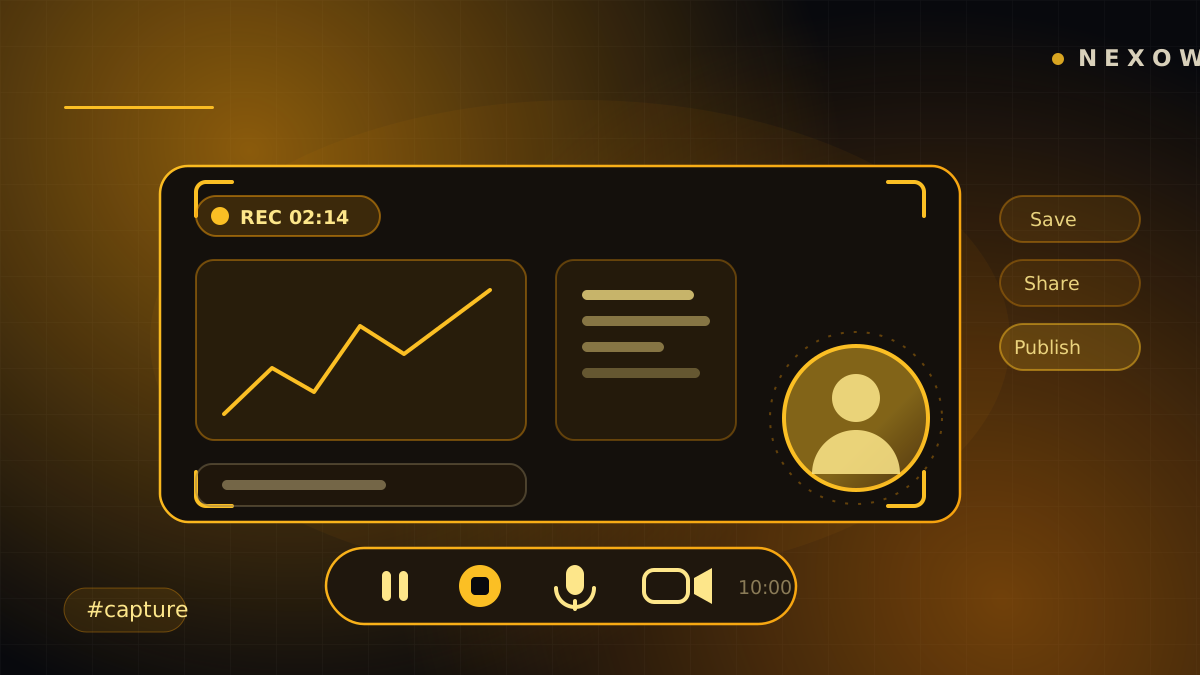
Screen recording is built into the toolbar: up to ten minutes of your canvas with your webcam composited in as a draggable bubble, a floating control bar, and a save-share-publish decision when you stop.
You build something good and then you want to show it — moving, not as a screenshot. Until now that meant leaving the app for a separate recorder, framing a browser window, and hoping the result was watchable. Now it’s a button in the toolbar.
Capture dashboard offers two things: a screenshot, croppable before you save it, or record video — your canvas, live, until you stop or hit ten minutes.
What goes in the take
Three switches, decided before you start:
- Camera bubble — your webcam, composited into the video as a rounded circle
- Microphone — your narration
- Tab audio — whatever the page itself is playing
The camera bubble isn’t fixed in a corner. Drag it anywhere, and it snaps to whichever corner you let go nearest, at the size you picked. It’s part of the video, not an overlay bolted on afterwards, so what you framed is what the file contains.
While you’re recording, a floating control bar stays out of the way and does the four things you actually need mid-take: pause and resume, mute the microphone, mute tab audio, hide or move the camera bubble — and stop. A timer runs the whole time, and it warns you as you approach the ten-minute ceiling rather than cutting out without explanation.
Then a decision, not a download
Stop, and the take opens in a review overlay with the video and four choices: Save, Share, Publish, Discard.
Publish sends it to the Community feed, and it’s the only one with a limit — a ten-minute recording can exceed what the feed’s uploads allow. When that happens Publish is disabled and explains why, with the maximum stated, while Save and Share stay available because neither goes near that ceiling. A greyed button that tells you the number is better than one that fails after the upload bar fills.
The unglamorous parts that make the file good
Most of the work in a screen recorder is invisible when it works:
- The picture is composited to a fixed-size canvas, always — even with no camera bubble. A tab capture’s resolution follows the window, so one resize mid-take would renegotiate the video track, and files containing a resolution change are broken in most players. Sizing once at the start is what makes the output a single clean encode: 1080p at 30fps, dropping to 720p when the browser hands over a whole-screen surface anyway.
- The container is chosen at runtime, not assumed. Firefox records WebM, Safari records MP4, and Chromium has shipped both at different versions. The recorder tries MP4 first — it’s the file that plays everywhere you’re likely to take it next — walks down to WebM if it must, and names the file after what the browser actually used rather than what it was asked for.
- Frames are clocked independently of the page. A backgrounded tab throttles animation but not audio, which is exactly how you get a frozen picture over continuing narration. If the tab was hidden during a take, the review overlay says so instead of letting you discover it later.
- Every track is stopped on every exit path, including a failure part-way through starting. A camera light left on is an app that looks like it’s watching you, and there’s no acceptable version of that.
Errors are honest in both directions. Dismissing the browser’s share picker isn’t an error and stays quiet — you didn’t share anything, and a toast about it would be noise. But a source that isn’t sending any picture gets a warning before you narrate five minutes into a grey rectangle, and a browser that can’t encode video at all says so instead of producing an empty file.
Coming next: record one widget
Landing with the next update is the smaller, sharper version of this: a camera button in a widget’s own header that records just that widget — cropped to the widget’s body, so the header the button sits in, and the control bar, stay outside the frame. The recording indicator can sit right there while you record without appearing in the video.
It’s built on Region Capture, which is a Chromium-desktop capability today, so the button only appears where it can actually deliver rather than offering something it would have to apologise for. It follows the widget if you move it, and stops cleanly if the widget leaves the screen.
Between the two, “here’s what I built” stops being a screenshot and a paragraph.
Launch Nexow, find Capture dashboard in the toolbar, and record your canvas.
Build your first widget in the next minute
Open the preview, describe one useful thing, and place it on your canvas.